
Help! I am trying to upload a video for assignment submission, but when trying to submit the assignment it appears to be never-ending.
The most common reason for this is the recording may be too large for the allotted assignment submission size.
Workaround / Solution:
Upload your recording to the My Media in your Canvas course.
In your Canvas course select My Media from the left-side course navigation menu

The first time you access the My Media you may receive the following message:
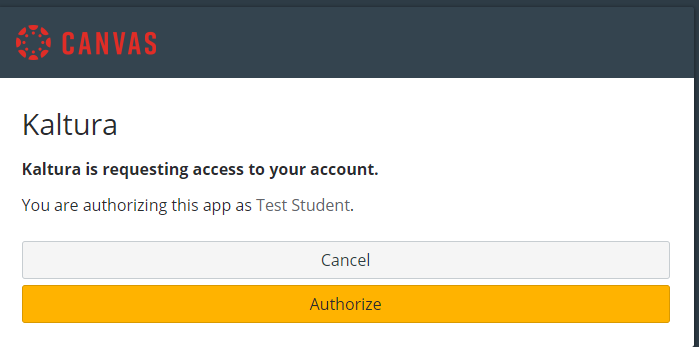
If you do, please click Authorize
Click the Add New button on the right side

Select Media Upload from the Drop-Down menu:
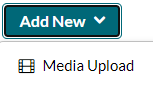
You may be prompted to comply with the schools' policies.

If your recording complies with the schools' policies, please check the box to agree with the terms and conditions.
Once you check the box, the Upload Media options will appear:
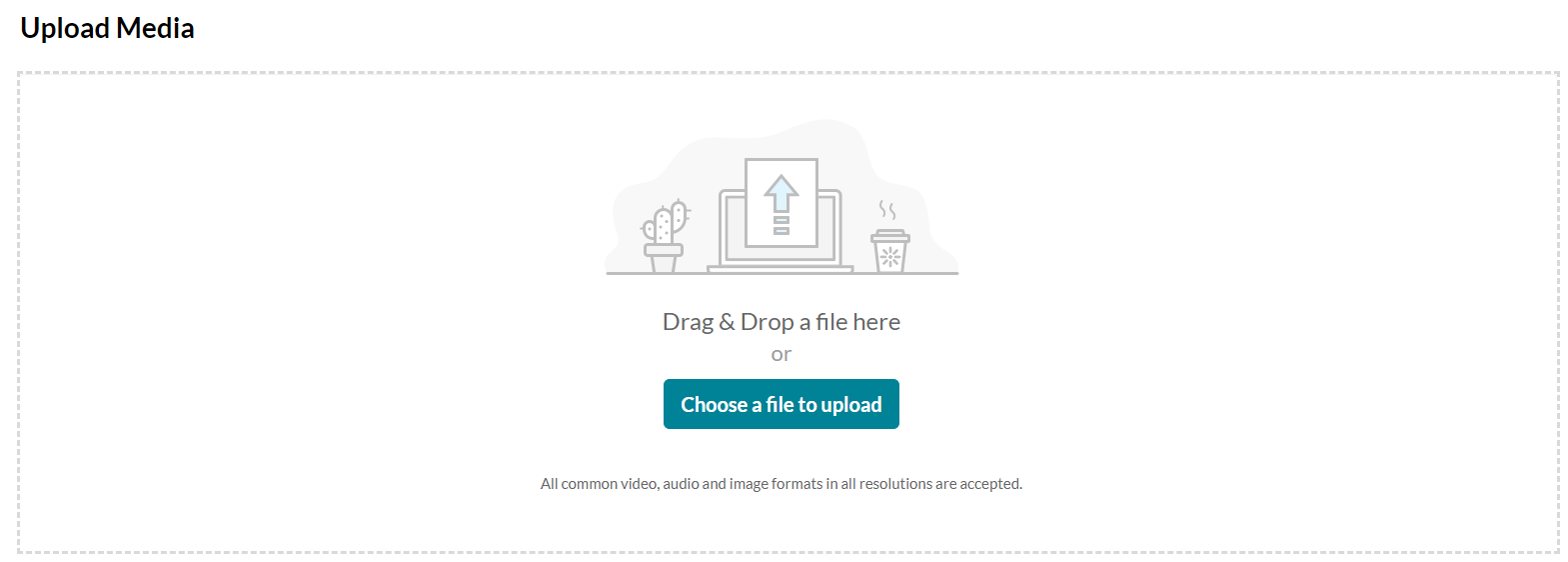
You can either Drag and Drop the recording or click the button “Choose a file to upload”. In this example, we will be using the Choose a File to upload option.
Select Choose a file to upload.

A window should open allowing you to search your computer for the recording to select.
Browse your computer to the location of the recording and select it.
Click Open
The video will start to upload and you will be redirected back to the Canvas My Media page.

You can edit the details of the recording.
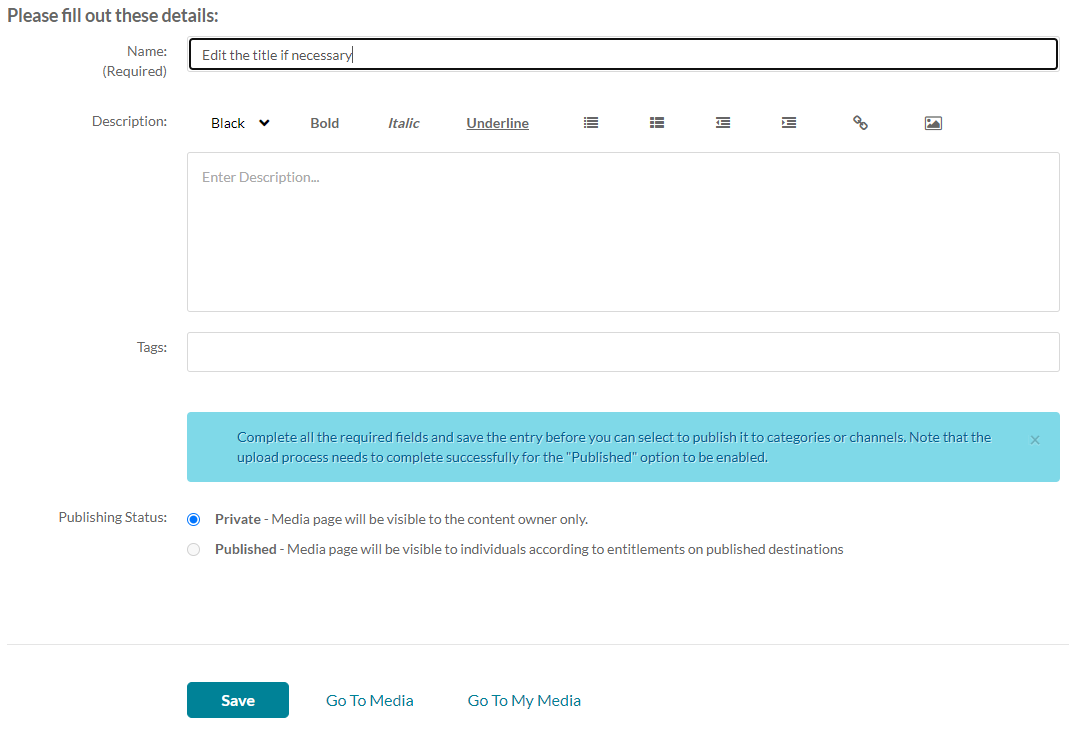
Click Save

Once the video has been uploaded, you will see the Upload Completed! Message…

Select Published
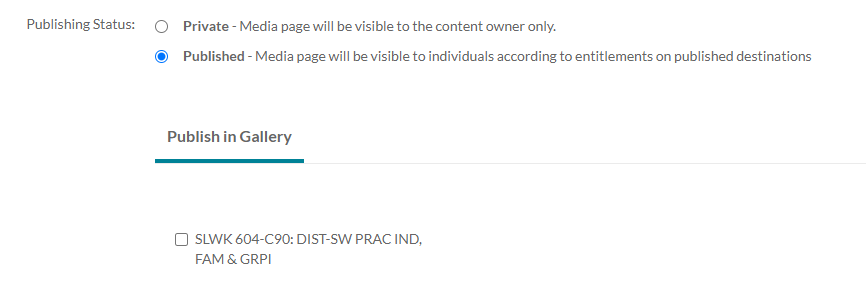
Select the check box for the course Gallery

Save your changes again


Select the Go to Media next to the Save button

The video should Display,
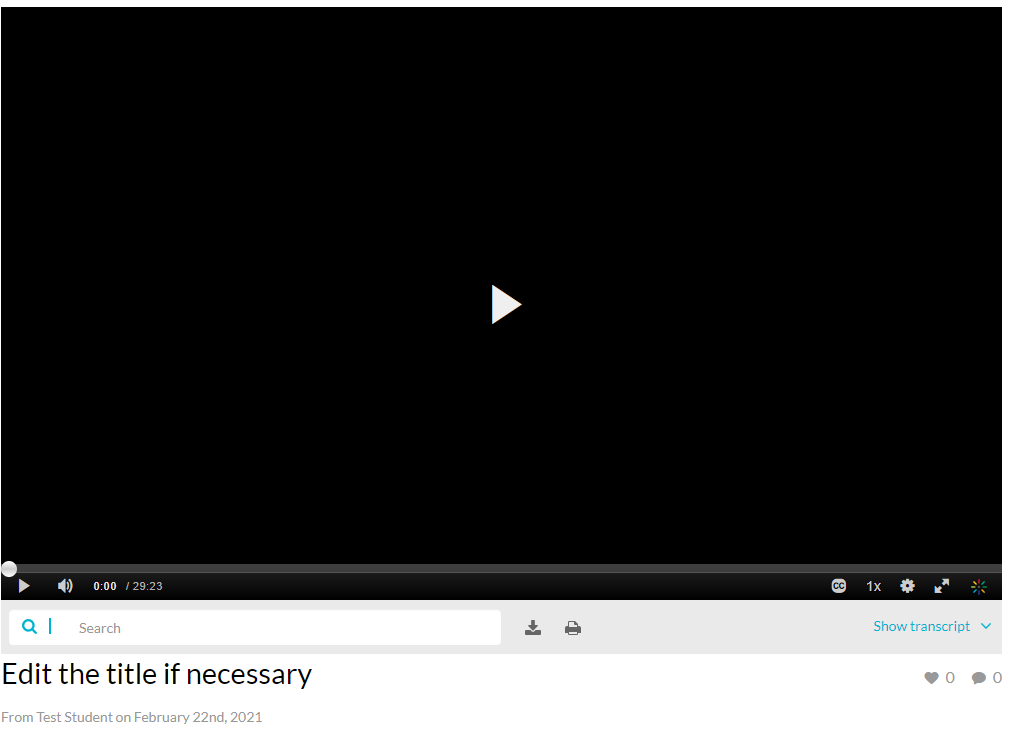
If it does not, please allow time for it to complete processing.
Go to your Assignment that requires the submission.
In this example, we will be adding the video to a Discussion Reply.
Click the Reply

Click the Apps Menu (looks like a plug icon)

Select Embed Kaltura Media

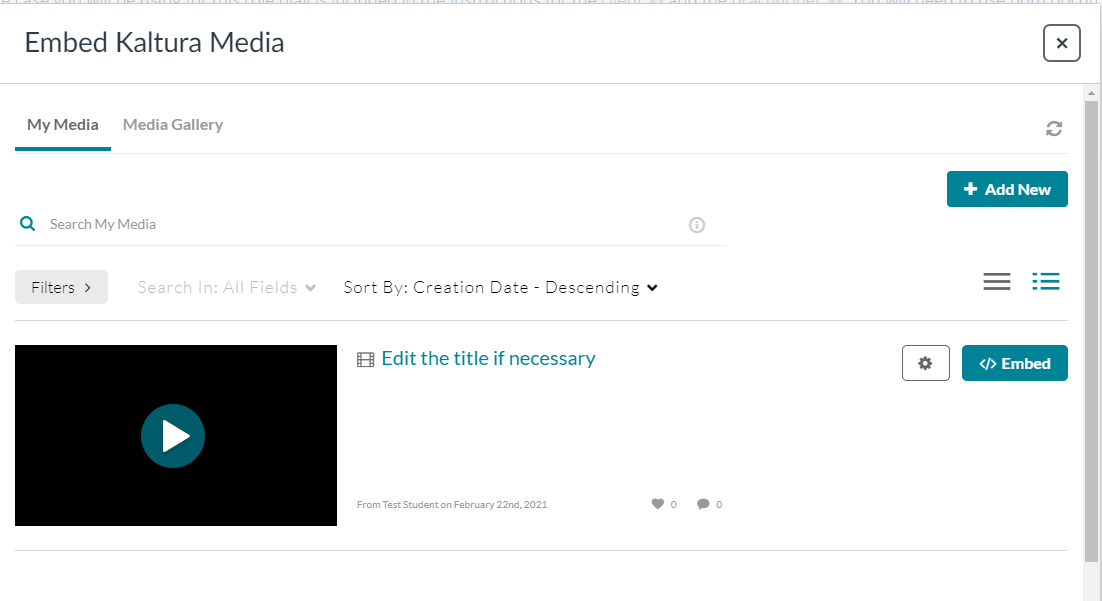
Locate the video you just uploaded.
Click the Embed button to the right

The page should refresh and you will see your video in the Reply box:
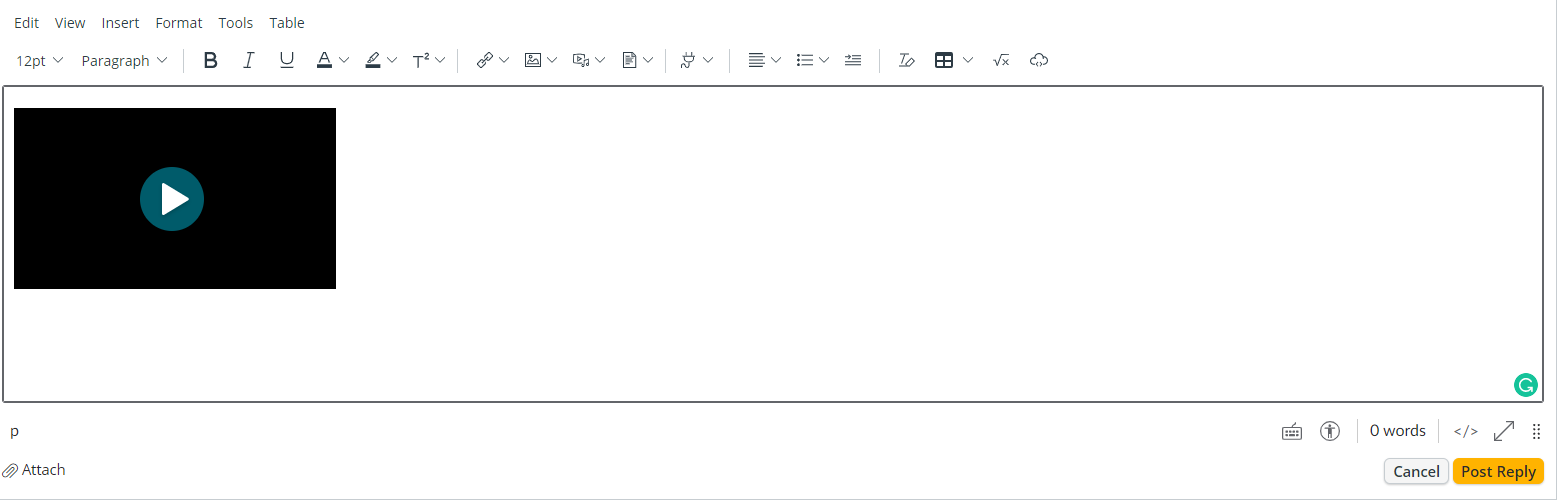
Add any text comments you wish/need to
Click Post Reply
Congratulations, you have successfully uploaded your recording Canvas and embedded it into your assignment submission.
Comments
Please sign in to leave a comment.